
The full tour
Everything SuzyQ does, in the order you would meet it
SuzyQ is one Chrome side panel that sits beside your CRM. It is open all day, next to the record you are working. This page goes through the whole of it - the parts you use on day one, and the parts you grow into.
One - Record and replay
Do it once by hand. Never do it again.
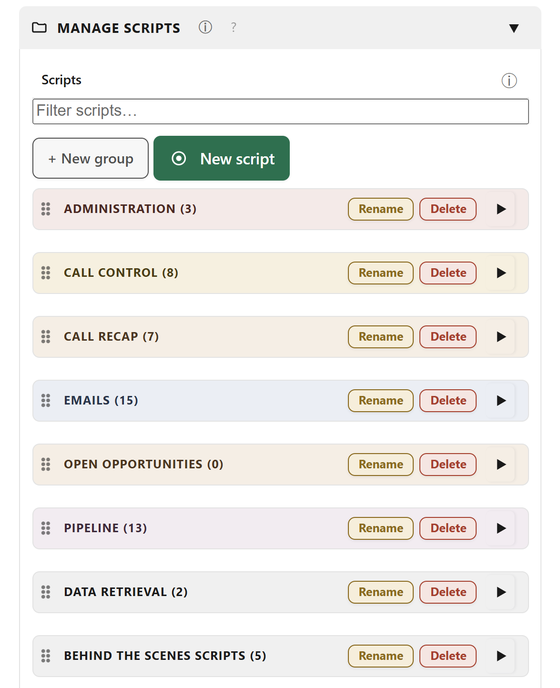
A script is a recording of you doing your job
Press record, work through a task the ordinary way, press stop, give it a name. SuzyQ writes down every click, every keystroke and every tab you moved between, and shows you the list so you can see exactly what it captured before you trust it.
It is not a macro that repeats screen coordinates. Each step finds its control by that control's identity on the page, waits for it to be ready, and retries when the page is slow. When a step cannot find what it is looking for it says so and stops - it does not click something nearby and hope.
- Runs across tabs and windows, not just the page in front of you
- A run bar shows the step it is on, with a Cancel that always works
- Open any script and edit, reorder or delete its steps by hand
- Insert a step into a script you already have - including recording one new click
Decisions
IF a value on the record is over a threshold, run this script; otherwise run that one. A recording can only show the path that happened, so branches are built deliberately - and once built, the routing happens without you thinking about it.
One script inside another
Build the fiddly bit once and call it from everywhere. A shared script that logs the call can be used by six other scripts, and fixing it fixes all six.
Waits that are honest
Wait for a control to appear rather than guessing at a number of seconds. A fixed pause is there too, for the dropdown that animates.
Two - It knows who you are calling
Read the account once. Use it everywhere.
This is the part that makes one recording serve every account, and it is the piece most people underestimate before they have used it.
Point at the values you want, and SuzyQ takes them
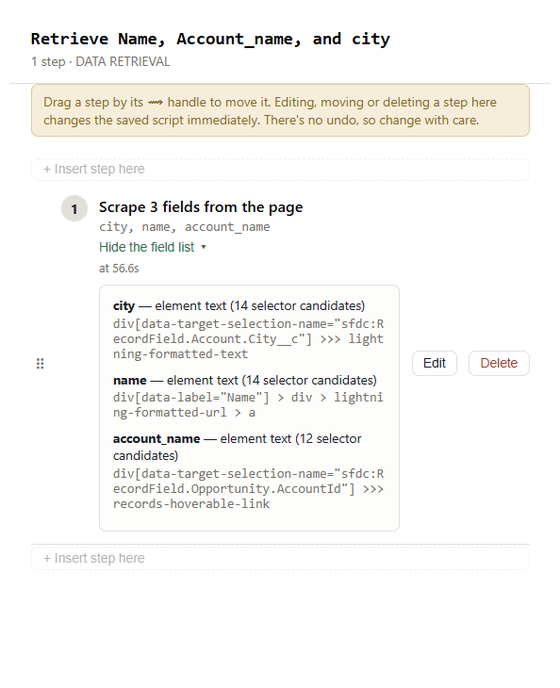
Click the fields on the record - the business name, the contact, the category, the city - and SuzyQ stores them under names you choose. You do not have to know anything about how the page is built; you point, it captures.
Those values are filled in when the script runs, not when you record it, and they persist between scripts. Scrape the account at the top of the call and three later scripts all use what it found.
- Type them into forms and email bodies
- Speak them aloud in your ear, so you hear who you are calling while the line rings
- Merge them into your script, so the teleprompter says the real name
- Test them in a decision, to route you down the right branch
- Calculate with them on a card, so the figure you quote is this customer's figure
Derived values
Pull the number out of a sentence, take the first word of a name, compute a weekly figure from a yearly one. A derived value updates itself whenever the value it is built from changes.
Dictation
Speak a note and SuzyQ types it into the field - straight into the disposition note or wherever your cursor is. Six formatting options for how it lands.
It tells you what depends on what
Every variable, script and card has an information button that answers the question you actually have before deleting something: what else uses this?
Three - While you are on the phone
The script, the objection, and the line to read next
The teleprompter
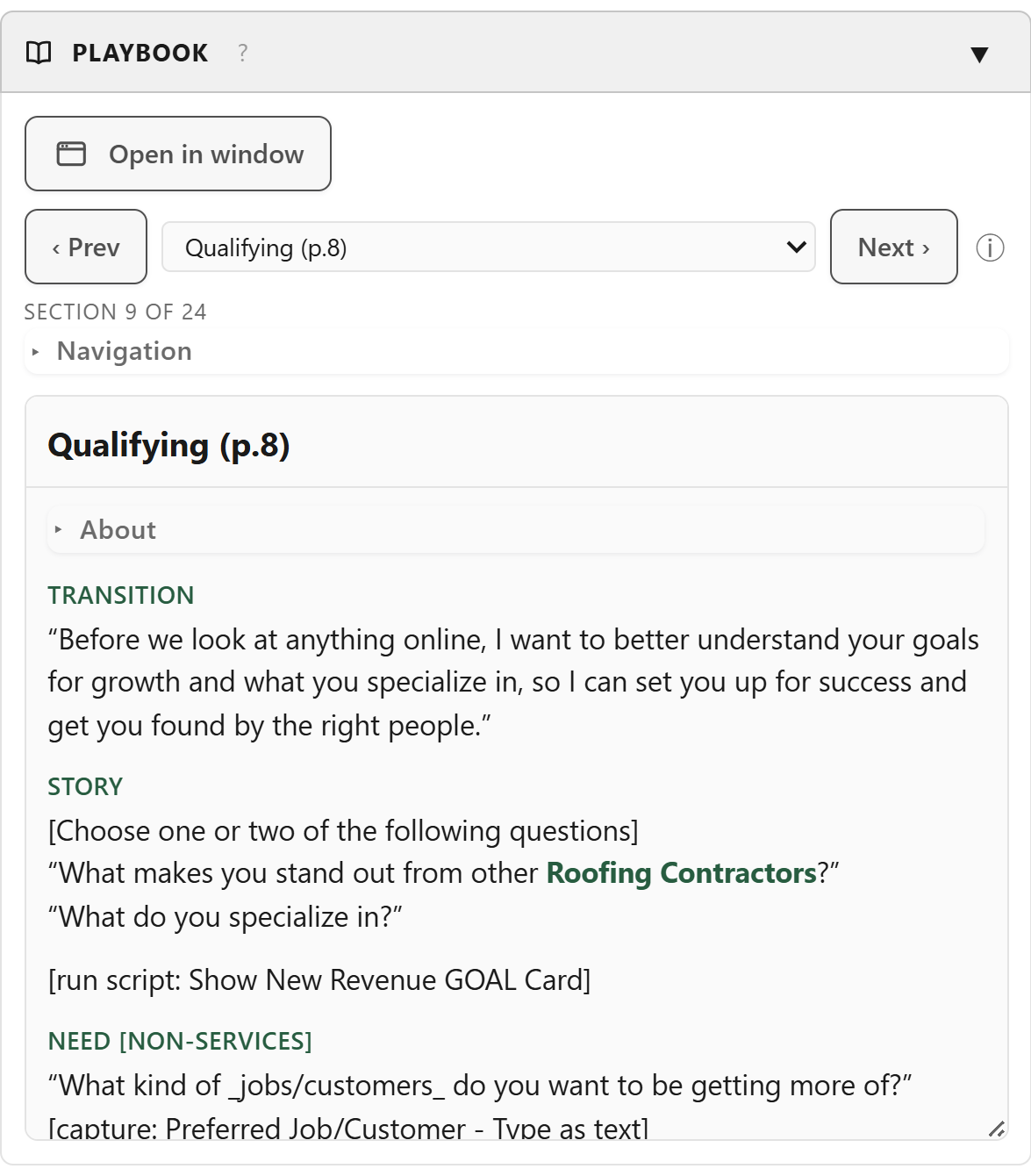
Your script sits in the panel one section at a time, with a navigation tree so you can jump straight to a part rather than scrolling for it. This account's real values are already merged into the lines.
- Follow-my-voice moves the highlight along as you read
- It can open on the right section for the kind of account this is
- What the customer says can jump you to the section that answers it
- Pops out into a window of its own for a second monitor
Live call listening, and the coach
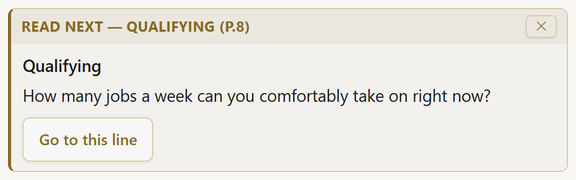
Point SuzyQ at your softphone tab and it turns the customer's side of the call into text on your own machine. That text does three jobs: it pops the rebuttal card when it hears a known objection, it can move the teleprompter to the right section, and it feeds the coach.
The coach names one line of your script - the one to read next - and gives you a button that takes the teleprompter there. It never writes sales copy. Choosing a line is what a small on-device model is good at; inventing one is what it is bad at.
- Transcription runs on your computer by default and the transcript is never saved
- The coach makes no network request at all - it uses Chrome's built-in model
- Objection cards are written by your team, so the answer is your team's answer
- Turn the coach on mid-call for a hard account, and off again after
Cards
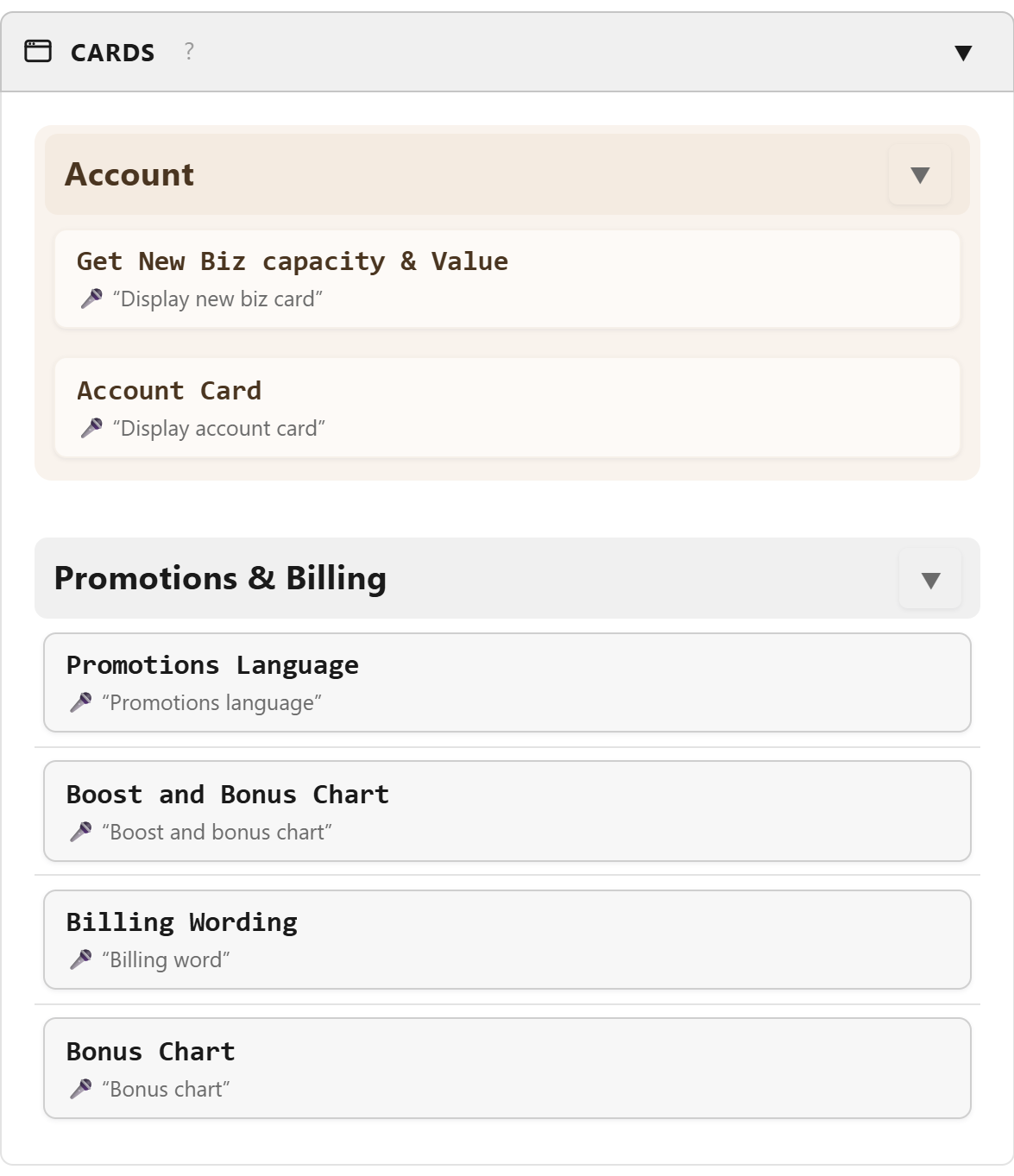
The pricing table, the billing wording, the bonus chart, the three numbers you always have to look up. One click, or one spoken phrase, and it is on screen. Put it on your second monitor and leave it there for the whole call.
- Cards track your variables live, so a card open during a scrape updates itself
- A card can do arithmetic - quote this customer's number rather than an example
- Fill-in fields you can type or dictate into mid-call
- A button on a card can run an entire script
- A picture can sit behind the text, or be the whole card
Four - Hands free
Say it instead of clicking it
Your hands are on the keyboard taking notes and the customer is mid-sentence. Speaking is often the only free channel you have.
Your own phrases
Record a phrase for a script or a card and say it to run it. The phrases are yours - whatever you would naturally say for that thing.
Spoken commands
Move the script on, jump back, pause the triggers, run a script by name. A short reserved list that works the same on every install.
Ask in plain English
Say "SuzyQ" and then what you want, in ordinary words, and the on-device model works out which of your scripts or cards you meant. No phrase to remember.
Five - Practice
Run the call against an AI customer
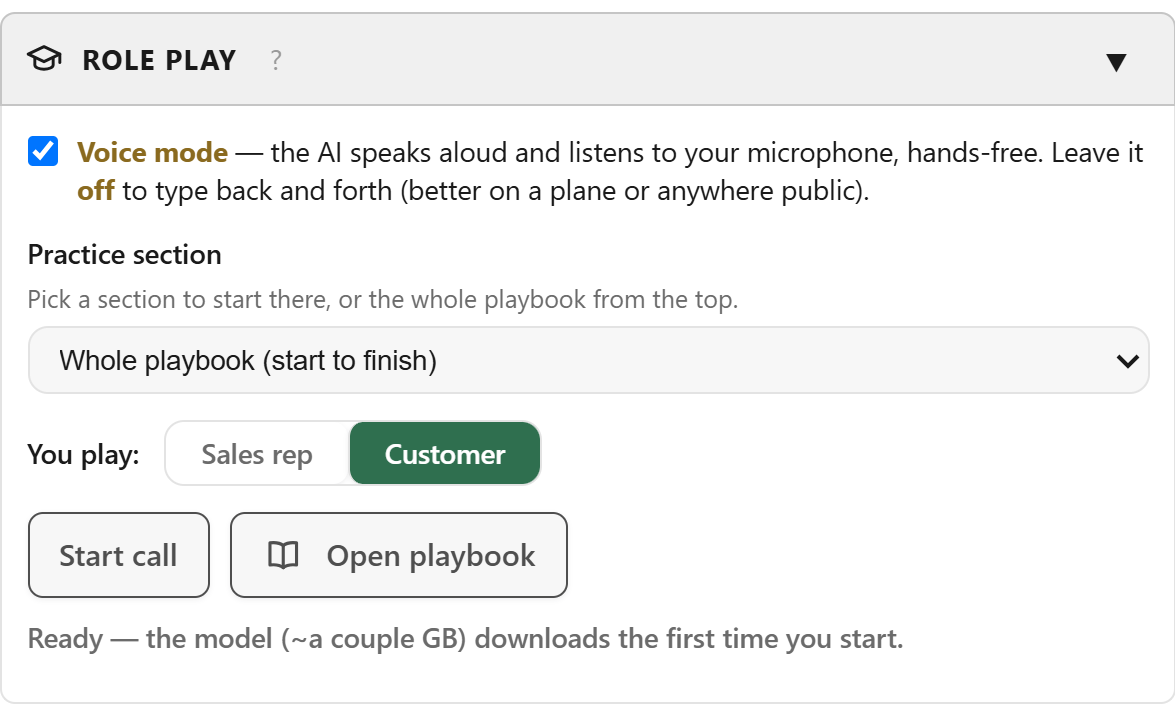
Pick a section, or the whole script from the top, and choose which side you want to play. Speak your half out loud and the AI answers as the customer would, including pushing back. Or type it, if you are on a plane.
It is the cheapest way to get a new script into your mouth before you use it on somebody real, and the fastest way to find the line that does not survive being said out loud.
- Play the rep, or let the AI read your script and play the rep against you
- Voice or typed, whichever suits where you are
- Practice a single hard section rather than the whole call
Six - Fitted to your desk
Arranged the way your day is arranged
You decide what is on the screen and where
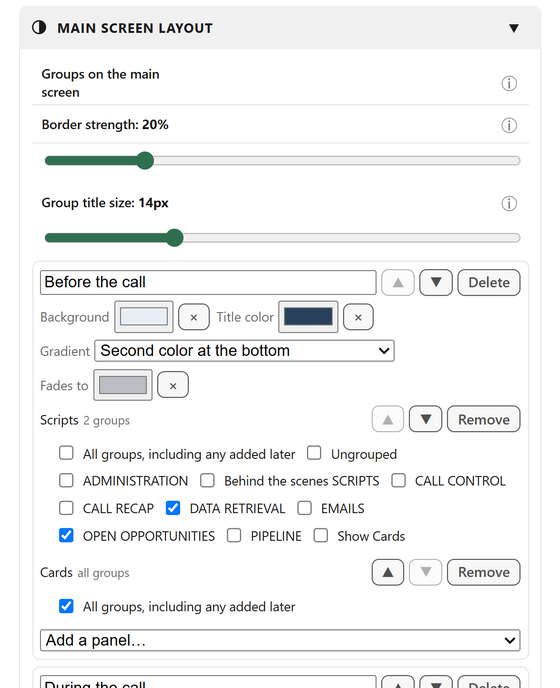
The main screen is built out of titled groups you name yourself - "Before the call", "During the call", "Wrap-up", whatever matches how you work. Panels go in the group you put them in, in the order you put them.
Your scripts and your cards can appear in more than one group, each showing only the groups that part of the call needs, so the opening scripts and the email scripts do not have to live in the same list.
Lanes
An email script can run in its own window, in the background, while a script in front of you carries on. Neither waits for the other and your screen is not dragged away.
Schedules
Have a script run at a time you pick - the morning login, the end-of-day report - without you being the one who remembers.
Backup and share
One button exports everything you built as a file you own. A separate share copy strips out passwords and keys, for handing your setup to a colleague.
Ask SuzyQ
Something not working? Say so in plain English and it checks the live state of the panel - the microphones, the page you are on, the switches - and tells you what it found. It only looks; it changes nothing.
That is the whole product. Try all of it.
Thirty days free, no card - then $40 a month, or $400 for the year. No tiers, nothing held back, and everything you build stays yours.